NeXt LeveL MP3 Player 1.1


![Gang Mod [Respect System]](https://img.gta5-mods.com/q75-w500-h333-cfill/images/gang-territory-mod-respect-system/b515bd-dwfwfwfwfwww.jpg "Gang Mod [Respect System]")


784
27
784
27
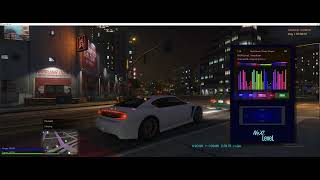
NeXtLeveL Music Player is a music player mod for GTA V that lets you play your own music files in-game, featuring playlists, a visualizer and themes.
1. How to Use:
Copy ALL files into your Grand Theft Auto V/scripts folder, including all Naudio files, and extra .dll's
Then Place your music files (.mp3 or .wav) in:
GTA V\scripts\NeXtLeveLMusicPlayer\Music\ - ( You will need to create the 2 folders sorry )
(You can use subfolders to organize.)
2. Open/Close the Player:
- In-game, press Shift + F7.
3. Basic Controls:
- Enter / NumPad 5: Select.
- Arrow Keys: Move up/down/left/right.
- Backspace: Back / Close player.
- Space: Play / Pause music.
4. Play Music:
Go to Library → choose Folders or All Songs → pick a track → press Enter to play.
While playing, use:
- Left Arrow: Previous track.
- Right Arrow: Next track.
- Space or Enter: Pause/Play.
5. Make Playlists:
Go to Playlists → Create New Playlist → type a name → press Enter.
To add songs: find a track in Library, press the + (Plus) key, and choose your playlist.
6. Change Settings:
In Settings, you can
- Adjust Volume or Brightness.
- Change Theme Colors (background, text, accent).
- Set Playback Mode (Normal, Loop, Shuffle).
Save Settings when done.
7. Visualizer:
Select Aurora Visualizer from the main menu to see bars and colors move with the music. Controls here are the same as Now Playing.
Quick Controls Reference:
- Shift + F7 → Open/Close player
- Enter → Select
- Backspace → Back
- Space → Play/Pause
- (Plus) + key → Add song to playlist
- Arrow keys → Navigate or change tracks
Change Log,
Ver 1.1,
includes the folders you need, so you dont need to create them anymore, and sample music.
1. How to Use:
Copy ALL files into your Grand Theft Auto V/scripts folder, including all Naudio files, and extra .dll's
Then Place your music files (.mp3 or .wav) in:
GTA V\scripts\NeXtLeveLMusicPlayer\Music\ - ( You will need to create the 2 folders sorry )
(You can use subfolders to organize.)
2. Open/Close the Player:
- In-game, press Shift + F7.
3. Basic Controls:
- Enter / NumPad 5: Select.
- Arrow Keys: Move up/down/left/right.
- Backspace: Back / Close player.
- Space: Play / Pause music.
4. Play Music:
Go to Library → choose Folders or All Songs → pick a track → press Enter to play.
While playing, use:
- Left Arrow: Previous track.
- Right Arrow: Next track.
- Space or Enter: Pause/Play.
5. Make Playlists:
Go to Playlists → Create New Playlist → type a name → press Enter.
To add songs: find a track in Library, press the + (Plus) key, and choose your playlist.
6. Change Settings:
In Settings, you can
- Adjust Volume or Brightness.
- Change Theme Colors (background, text, accent).
- Set Playback Mode (Normal, Loop, Shuffle).
Save Settings when done.
7. Visualizer:
Select Aurora Visualizer from the main menu to see bars and colors move with the music. Controls here are the same as Now Playing.
Quick Controls Reference:
- Shift + F7 → Open/Close player
- Enter → Select
- Backspace → Back
- Space → Play/Pause
- (Plus) + key → Add song to playlist
- Arrow keys → Navigate or change tracks
Change Log,
Ver 1.1,
includes the folders you need, so you dont need to create them anymore, and sample music.
Først Lastet opp: 27. desember 2025
Sist Oppdatert: 4. januar 2026
Last Downloaded: 5 dager siden
52 Kommentarer
More mods by ebeneezer82:
NeXtLeveL Music Player is a music player mod for GTA V that lets you play your own music files in-game, featuring playlists, a visualizer and themes.
1. How to Use:
Copy ALL files into your Grand Theft Auto V/scripts folder, including all Naudio files, and extra .dll's
Then Place your music files (.mp3 or .wav) in:
GTA V\scripts\NeXtLeveLMusicPlayer\Music\ - ( You will need to create the 2 folders sorry )
(You can use subfolders to organize.)
2. Open/Close the Player:
- In-game, press Shift + F7.
3. Basic Controls:
- Enter / NumPad 5: Select.
- Arrow Keys: Move up/down/left/right.
- Backspace: Back / Close player.
- Space: Play / Pause music.
4. Play Music:
Go to Library → choose Folders or All Songs → pick a track → press Enter to play.
While playing, use:
- Left Arrow: Previous track.
- Right Arrow: Next track.
- Space or Enter: Pause/Play.
5. Make Playlists:
Go to Playlists → Create New Playlist → type a name → press Enter.
To add songs: find a track in Library, press the + (Plus) key, and choose your playlist.
6. Change Settings:
In Settings, you can
- Adjust Volume or Brightness.
- Change Theme Colors (background, text, accent).
- Set Playback Mode (Normal, Loop, Shuffle).
Save Settings when done.
7. Visualizer:
Select Aurora Visualizer from the main menu to see bars and colors move with the music. Controls here are the same as Now Playing.
Quick Controls Reference:
- Shift + F7 → Open/Close player
- Enter → Select
- Backspace → Back
- Space → Play/Pause
- (Plus) + key → Add song to playlist
- Arrow keys → Navigate or change tracks
Change Log,
Ver 1.1,
includes the folders you need, so you dont need to create them anymore, and sample music.
1. How to Use:
Copy ALL files into your Grand Theft Auto V/scripts folder, including all Naudio files, and extra .dll's
Then Place your music files (.mp3 or .wav) in:
GTA V\scripts\NeXtLeveLMusicPlayer\Music\ - ( You will need to create the 2 folders sorry )
(You can use subfolders to organize.)
2. Open/Close the Player:
- In-game, press Shift + F7.
3. Basic Controls:
- Enter / NumPad 5: Select.
- Arrow Keys: Move up/down/left/right.
- Backspace: Back / Close player.
- Space: Play / Pause music.
4. Play Music:
Go to Library → choose Folders or All Songs → pick a track → press Enter to play.
While playing, use:
- Left Arrow: Previous track.
- Right Arrow: Next track.
- Space or Enter: Pause/Play.
5. Make Playlists:
Go to Playlists → Create New Playlist → type a name → press Enter.
To add songs: find a track in Library, press the + (Plus) key, and choose your playlist.
6. Change Settings:
In Settings, you can
- Adjust Volume or Brightness.
- Change Theme Colors (background, text, accent).
- Set Playback Mode (Normal, Loop, Shuffle).
Save Settings when done.
7. Visualizer:
Select Aurora Visualizer from the main menu to see bars and colors move with the music. Controls here are the same as Now Playing.
Quick Controls Reference:
- Shift + F7 → Open/Close player
- Enter → Select
- Backspace → Back
- Space → Play/Pause
- (Plus) + key → Add song to playlist
- Arrow keys → Navigate or change tracks
Change Log,
Ver 1.1,
includes the folders you need, so you dont need to create them anymore, and sample music.
Først Lastet opp: 27. desember 2025
Sist Oppdatert: 4. januar 2026
Last Downloaded: 5 dager siden
 5mods on Discord

YOU ARE A GENIUS!! THANK FOR THIS WONDERFUL CRREATION.
@ebeneezer82 Dude, in fivem it's possible, I believe it's possible here too, even though they're different programming languages. Look at this map, in the first few seconds (0:50) it shows an interactive screen (ignore the fact that the screen moves upwards, that's another animation unrelated to the topic). I've seen this map in RP cities and I was able to put YouTube and Twitch videos through the link. https://www.youtube.com/watch?v=0GQ4duZyjNI
@leuzinlost , Well if it is I have no idea how sorry. I suggest find the people that made it and ask. I only use 1 language, im a vibe coder that uses AI. Its beyond me
@ebeneezer82 Ah, that makes everything clear. Thank you.
@leuzinlost Yah wish i coudl help. Good luck with your project
@ebeneezer82 thank you very much!
@leuzinlost se nao me engano tem como fazer isso no gta v SP so que tem que baixar o arquivo
passa o dc se quiser entrar em contato dps, que te falo mais blz?
@zecass me chama la, @leona.rdo
@zecass It's possible in GTA V single-player mode, but you'll need to download files. What are these files? Could you share them?
@ebeneezer82 When will the new version be released? Could you add more effects to the player's spectrum? Remember to include a custom INI key in the package.
@a012345 - The screen is pretty full, no I cant add more effects. Its already hard on weaker PC's fram rate. I will release a final version with an .ini, soon. But I am busy with many things at the moment.
wow. Can we hide the player?
@liquido Yes! I believe Backspace will close the player, while the music should continue.
@ebeneezer82 It works with symlink shortcuts right? If so I will definitely try this!
@ liquido - Try and see, if it doesnt, I will make sure it does in the update., But im not even at home for a few days .
Yo, what happened to your weapon pickup script?
@bloolol I took it down. I will re-release it eventually with some new features
good mod but Is there no limit to the number of songs I can add?
@Makima2003 No, as long as it all fits on your hard drive
Bro, how can I change the keys on a controller?